SQL Server
How to Find and Navigate a Database in SQL Server Management Studio
Learn how SQL Server organizes instances, databases, schemas and tables, how to find a table in Object Explorer, and how to open a query window in the right database.
On this page
In the previous lesson you connected SSMS to a SQL Server instance. Object Explorer now shows a tree with a server at the top and a handful of folders under it. Somewhere in that tree is the data you actually want to query.
This lesson, the second step of SQL Server Foundations, teaches you to read that tree: how SQL Server organizes its objects, where tables live, and why being connected to a server is not the same as running a query in the right database.
Server and database are different things
Beginners often use “server” and “database” as if they meant the same thing. In SQL Server they do not.
- A SQL Server instance is one running copy of the Database Engine. It is what you connected to, and what the top node of Object Explorer represents.
- A database is a container inside an instance. It holds tables, views, procedures and the data itself, and it has its own files, its own users and its own permissions.
One instance can host many databases. A single production server might hold a sales database, an HR database and a reporting database side by side, completely separate from each other. When someone says “the data is on SQL01”, that tells you the instance. You still need to know which database.
How SQL Server organizes objects
Everything you will browse in this series fits into one hierarchy:
- SQL Server instanceWhat you connect to, e.g. localhost\SQLEXPRESS
- containsDatabaseJaviBuildsLab, plus master, model, msdb, tempdb
- containsSchemaA named group of objects, e.g. dbo
- containsTabledbo.Orders
- defined byColumns, keys, indexesThe table's structure
- Columns
- Keys
- Indexes
Keep this picture in mind. Most beginner errors, from “Invalid object name” to “I can’t find my table”, come from being at the wrong level of it.
System databases and user databases
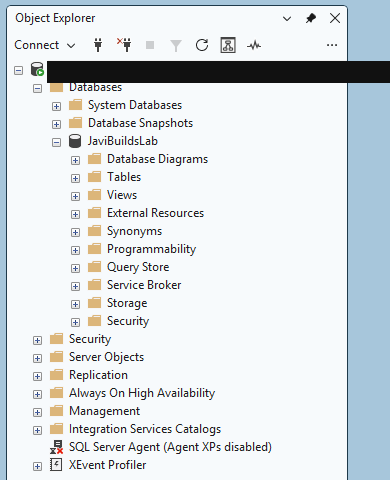
Expand the Databases folder. The first thing you see is a subfolder called System Databases, followed by the user databases on this instance.
The system databases belong to SQL Server itself:
- master records instance-wide information: logins, configuration, and the list of databases that exist.
- model is the template for new databases. Whatever is in model is copied into every database created afterwards.
- msdb stores the data of SQL Server Agent jobs, backup history and a few other services.
- tempdb is a scratch space for temporary tables and intermediate work. It is rebuilt every time SQL Server restarts.
You will query some of them one day, mostly to read information. Do not create your own tables in them, and never experiment with deleting or changing anything there. A mistake in master or msdb affects the whole instance, not just one application.
User databases are everything else: the databases that applications, reports and people create. In this series we use one called JaviBuildsLab. If you want to follow along on your own instance, the next lesson includes a short, safe script that creates it with a small table of synthetic customers.
If a database you just created does not appear, right-click Databases and select Refresh. Object Explorer does not update itself when something changes; it shows the state at the moment you expanded the folder. The same applies to tables, views and every other folder in the tree.
This SSMS capture shows the same Databases view on the synthetic JaviBuildsLab instance.
Inside a database
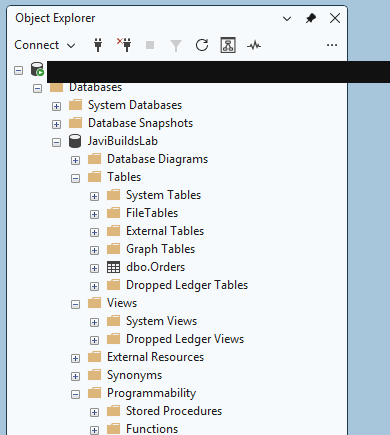
Expand JaviBuildsLab (or any user database you have access to). The folders you will use most are:
- Tables: where data is stored.
- Views: saved queries that behave like tables.
- Programmability: code stored in the database, including stored procedures and functions.
- Security: the database users, roles and schemas.
You will also see folders such as Database Diagrams, External Resources, Synonyms and Storage. They have their uses, but you do not need them yet.
This capture shows the same database folders in the synthetic JaviBuildsLab practice database.
Schemas, and why everything says dbo
Expand Tables and you will see names like dbo.Customers. That is two names, not one: dbo is the schema, and Customers is the table.
A schema is a named group of objects inside a database. It works like a folder for tables, views and procedures, and it is also a convenient boundary for permissions. dbo (short for database owner) is the default schema that every database has, so many databases put almost everything there. Larger databases often use several schemas, such as sales.Orders, hr.Employees and staging.Customers.
Two practical points follow:
- The same table name can exist in different schemas.
dbo.Customersandstaging.Customersare two different tables with possibly very different data. - If you cannot find a table under
dbo, it may simply live in another schema. Scroll through the whole Tables folder, or right-click it and use Filter to search by name.
When you write queries, always include the schema: dbo.Customers, not just Customers. It is clearer to the next reader, and it removes any doubt about which table you meant.
Tables, columns, keys and indexes
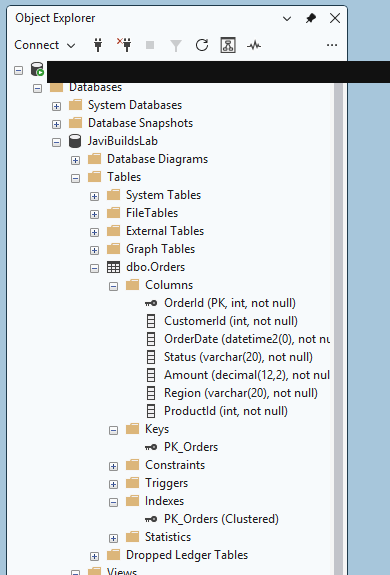
Expand dbo.Customers. Under it you find the folders that describe the table’s structure:
- Columns lists every column with its data type and whether it allows NULL, for example
CustomerId (PK, int, not null)orEmail (nvarchar(254), null). - Keys shows the primary key, which uniquely identifies each row, and any foreign keys that link this table to others. Keys get their own lesson later in the path.
- Constraints, Triggers and Statistics hold rules and metadata you can leave alone for now.
- Indexes lists the structures SQL Server uses to find rows quickly. The primary key usually comes with one. Indexes also get their own lesson.
Looking at the Columns folder before you write a query is a good habit. It tells you the exact column names, so you do not have to guess whether a column is called Email, EmailAddress or email_address.
This capture uses dbo.Orders in JaviBuildsLab; dbo.Customers has the same kinds of Columns, Keys, and Indexes folders in the Foundations demo.
Views
A view is a saved SELECT query with a name. You query it exactly like a table, but it stores no data of its own: every time you read from it, SQL Server runs the query behind it.
Teams use views to give people a simpler or safer shape of the data, for example a view that joins customers to their latest order, or one that hides sensitive columns. In Object Explorer they live in the Views folder and use the same schema.name format, such as dbo.vw_ActiveCustomers. A later lesson covers creating them.
Programmability: stored procedures and functions
The Programmability folder contains code that lives inside the database:
- Stored Procedures are named blocks of T-SQL that you run with
EXEC. Applications often call procedures instead of sending raw queries. - Functions return a value or a table and can be used inside queries.
You do not need to write either yet. It helps to know where they are, because sooner or later someone will ask you to “run the procedure”, and this is where you will find it.
Open a query window in the right database
Here is the habit that saves the most confusion. In Object Explorer, right-click the database you want to work with, then select New Query.
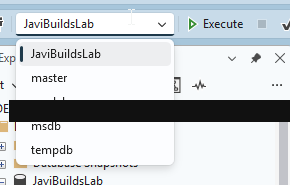
The query window that opens is connected to the same instance and already set to that database. Look at the toolbar: the Available Databases drop-down shows the current database. That drop-down is your query context. Any query you run executes there, whatever is selected in Object Explorer.
If you open a query window another way, for example with the New Query button while the server node is selected, it usually starts in your login’s default database, which is often master. Change the drop-down to the database you want before you run anything.
The selector in this capture shows JaviBuildsLab; use the same database when following the Foundations setup script.
Connected is not enough: query context
This is the single most important idea in this lesson. Being connected to a server tells SQL Server where to send your query. The database context tells it which database to run it in.
If you run SELECT * FROM dbo.Orders; while the drop-down says master, SQL Server looks for an Orders table in master, does not find one, and answers with “Invalid object name ‘dbo.Orders’”. The table exists; you are just in the wrong database.
You can set the context in T-SQL with USE:
USE JaviBuildsLab;USE changes the database for the rest of that query window, exactly like the drop-down. It is handy in scripts that must run in a known database. For everyday querying you do not need to put USE at the top of every query: open the query window from the right database, glance at the drop-down before you run anything, and keep USE for scripts you will hand to someone else.
You will also see three-part names like JaviBuildsLab.dbo.Orders, which name the database explicitly. They work, but they tie a query to one database name; most day-to-day queries are better written with two-part names in the right context.
Next step
You can now find a database, recognize its schemas and tables, see a table’s columns, and open a query window in the right context. In the next lesson, Your First SELECT Query in SQL Server, you will create the practice table and write your first queries against it.
The full learning path is on the SQL Server Foundations hub.
Check what you learned
2 quick questions
SQL Server Foundations
Lesson 2 of 25
Was this helpful?
What could be better?
Thanks — that helps me improve Javi Builds.
Continue learning
- Cheat sheetCheck SQL Server Table SizesMeasure SQL Server table row counts and storage usage, separate data from index space, and identify which tables are driving database growth.Open cheat sheet
- RoadmapSQL Server FoundationsLearn how SQL Server organizes instances, databases, schemas and tables, how to find a table in Object Explorer, and how to open a query window in the right database.View roadmap
What should I build next?
I'm building Javi Builds around practical problems data engineers actually face. Tell me what you'd like to see next.