SQL Server
How to Connect to SQL Server with SSMS
A beginner's walkthrough of the SSMS Connect dialog: what to type as the server name, which authentication to pick, what the encryption options mean, and what to check when the connection fails.
On this page
Almost every SQL Server tutorial starts with a query. Before you can run one, you have to get past a small dialog box that asks for a server name and an authentication method, and that box stops more beginners than any piece of T-SQL.
This lesson is the first step of SQL Server Foundations. By the end of it you will know what SQL Server Management Studio is, what to type in each field of its connection dialog, and what to check when it refuses to connect.
What SSMS is (and what it is not)
SQL Server Management Studio (SSMS) is a free Windows application from Microsoft for working with SQL Server. You use it to connect to a server, browse its databases, write and run T-SQL queries, and manage security, backups and jobs.
The important word is client. SSMS does not store any data and it is not SQL Server itself. The SQL Server Database Engine is a separate service that runs on a machine somewhere: your laptop, a server in a data center, a virtual machine, or a managed service in Azure. SSMS is the tool you point at that engine.
Two consequences follow:
- Installing SSMS does not install SQL Server. If nothing is running on the other end, there is nothing to connect to.
- One copy of SSMS can connect to many servers, and you can have several connections open at the same time in Object Explorer.
The current major release is SSMS 22. If you are deciding which version to install, the SSMS 22 vs 21 vs 20 comparison explains the differences. The connection concepts below are the same in all of them; only the layout of the dialog changes.
What you need before connecting
You need four things. If you are missing one, ask whoever looks after the server before you start guessing.
- A SQL Server instance to connect to. On your own machine that is usually SQL Server Developer edition or Express edition. At work it is a server someone else installed, or an Azure SQL database.
- Its name. Not the database name: the name of the server or instance. More on this below.
- A way to reach it over the network. For a local instance this is automatic. For a remote server, your machine must be allowed to reach it, which can mean being on the company network or VPN.
- Credentials that SQL Server accepts. Either your Windows account, a SQL Server login and password, or a Microsoft Entra account, depending on how the server is configured.
Practice on a server you are allowed to experiment with. A local Developer or Express instance is ideal for this series; a production server is not.
The Connect dialog, field by field
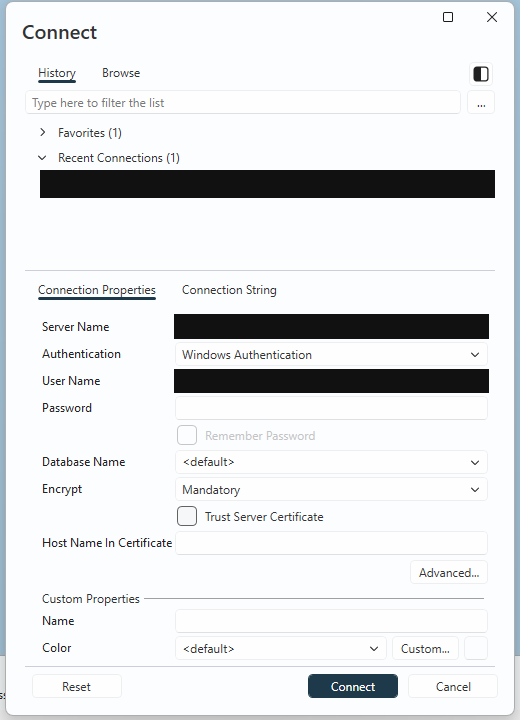
Open SSMS. The connection dialog usually appears on its own. If it does not, select Connect in Object Explorer, then Database Engine. SSMS 21 and later use a redesigned dialog with a few more options visible, but the fields that matter are the same.
Server type. If your version shows this field, choose Database Engine. The other types (Analysis Services, Integration Services, Reporting Services) are different products that happen to share the SQL Server name.
Server name. Where SQL Server is running. This is the field people get wrong most often, so it has its own section next.
Authentication. How you prove who you are. The common choices are Windows Authentication, SQL Server Authentication and the Microsoft Entra options.
User name and Password. Only used by authentication methods that need them. With Windows Authentication the user name is filled in from your Windows session and greyed out.
Encryption. Recent SSMS versions encrypt connections by default (the option is called Encrypt, set to Mandatory). That is the right default. Some versions also offer Strict, which newer servers and Azure SQL support.
Trust server certificate. A checkbox that tells SSMS to accept the server’s certificate without validating it. Leave it unchecked unless you know why you need it; the troubleshooting section below explains the one common case.
Database name (under the advanced options). Leave it at the default. Choosing a database here only changes where you land after connecting, and if you pick one you cannot open, the whole connection fails.
Then select Connect.
What to type as the server name
The server name identifies a SQL Server instance: one installed, running copy of the Database Engine. A machine can host several instances. One of them can be the default instance, reached by the machine name alone; the others are named instances, reached as MACHINE\INSTANCENAME.
| You type | What it means |
|---|---|
localhost |
The default instance on the machine you are sitting at. |
. |
Shorthand for the same thing: the default instance on this machine. |
MACHINE-NAME |
The default instance on the computer called MACHINE-NAME. |
MACHINE-NAME\SQLEXPRESS |
The named instance SQLEXPRESS on that computer. Express edition installs with this name unless someone changed it. |
.\SQLEXPRESS |
The same named instance, on your own machine. |
server.example.com |
A server reached by its DNS name, default instance. |
server.example.com,1433 |
The same server on a specific TCP port. Note the comma: SQL Server does not use a colon before the port. |
myserver.database.windows.net |
An Azure SQL Database logical server. |
(localdb)\MSSQLLocalDB |
SQL Server Express LocalDB, a lightweight developer instance some tools install. |
These are patterns, not values to copy. The real name depends entirely on your environment. If you installed SQL Server yourself and do not remember whether you chose a named instance, open SQL Server Configuration Manager (or the Windows Services list) and look for the SQL Server service: SQL Server (MSSQLSERVER) is the default instance, and anything else in the parentheses, such as SQL Server (SQLEXPRESS), is a named instance with that name.
At work, ask for the exact string you should use. Servers are often reached through an alias or a listener name rather than the physical machine name, and only the people who run them know which one is right.
Choosing an authentication method
SQL Server has to decide who you are before it decides what you can see. For a beginner, three options cover almost every case.
Windows Authentication. SQL Server trusts the Windows account you are logged in with. No password to type, and it is the default for a local installation, where the account that installed SQL Server is usually an administrator of the instance. In a company domain it is also the common choice for on-premises servers.
SQL Server Authentication. A login and password stored inside SQL Server itself, such as report_reader. It works from any machine, domain or not, which is why applications and some shared environments use it. It only works if the server is configured for mixed mode; many servers allow Windows Authentication only.
Microsoft Entra authentication (formerly Azure Active Directory). Your organization’s cloud identity. For Azure SQL Database and Azure SQL Managed Instance, Microsoft Entra MFA is the usual choice: you sign in with your work account and complete multifactor authentication in a browser prompt. Recent SQL Server versions can also use Entra identities when the server has been set up for it.
You will see more Entra options in the list, such as password, integrated, service principal or managed identity. They exist for specific setups. If nobody has told you to use one of them, you do not need it.
What you see after you connect
When the connection succeeds, the dialog closes and Object Explorer opens on the left side of SSMS. Object Explorer is the tree you will use in every lesson of this series.
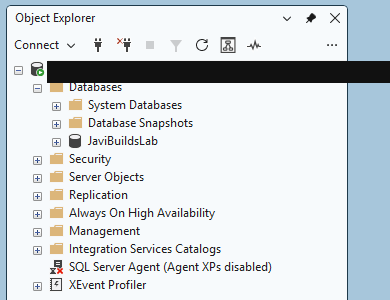
The top node is the server itself. Its label shows the server name, the version number of the Database Engine (16.0 is SQL Server 2022, 17.0 is SQL Server 2025) and the login you connected with. Checking that line is a good habit: it confirms where you are and who you are before you run anything.
Under the server node you will find folders such as:
- Databases: the system databases (master, model, msdb, tempdb) and the user databases where applications keep their data. The next lesson is about this folder.
- Security: the logins that are allowed to connect to the instance, and the server-level roles they belong to.
- Server Objects: objects that belong to the whole instance rather than to one database, such as backup devices and linked servers.
- Management: logs and maintenance features, including the SQL Server error log, which you will read sooner or later.
Depending on your edition and permissions, you may also see folders such as Replication, Always On High Availability and SQL Server Agent (the job scheduler, which Express edition does not include). You can ignore them for now. If a folder you expect is missing, it is usually a permissions or edition difference, not an error.
When the connection fails
Read the error message carefully, including the part after “Additional information”. It almost always names the category of problem.
Wrong server or instance name. The classic message is “A network-related or instance-specific error occurred while establishing a connection to SQL Server. The server was not found or was not accessible.” Check the spelling, the backslash before the instance name, and that you used a comma, not a colon, before a port number.
The SQL Server service is not running. The same network error appears when the service is stopped. On your own machine, check the service in SQL Server Configuration Manager and start it.
Network or firewall. Remote connections need the server’s port to be reachable (1433 by default for a default instance). Named instances usually listen on a dynamic port that the SQL Server Browser service announces; if Browser is stopped or its traffic is blocked, connect with an explicit port instead. Express edition also ships with remote TCP/IP connections disabled.
Authentication failure. “Login failed for user” (error 18456) means the server was reached but rejected the login: wrong password, a login that does not exist, a disabled login, or SQL Server Authentication used against a server that only allows Windows Authentication.
Encryption and certificates. “The certificate chain was issued by an authority that is not trusted” means the connection is encrypted but SSMS cannot validate the server’s certificate. Local development instances often use a self-signed certificate. On your own development machine, checking Trust server certificate is a reasonable workaround. On a shared or production server, ask the administrators to fix the certificate instead of switching validation off.
Insufficient access. Sometimes the connection works but you cannot open a database, or Object Explorer shows less than a colleague sees. “Cannot open database requested by the login” usually means the Database name option points to a database your login cannot use. Being able to connect to an instance and having permission inside a database are separate things.
Next step
You are connected, and the server node in Object Explorer tells you which instance you are on and as whom. The next lesson moves one level down: How to Find and Navigate a Database in SQL Server Management Studio explains the difference between a server and a database, what the system databases are for, and how to open a query window in the right place.
The complete path, including the lessons still to come, is on the SQL Server Foundations hub.
Check what you learned
2 quick questions
SQL Server Foundations
Lesson 1 of 25
Was this helpful?
What could be better?
Thanks — that helps me improve Javi Builds.
Continue learning
- Cheat sheetCheck Index UsageReview SQL Server index read and write activity, identify low-value indexes, and decide what deserves deeper analysis before any index is removed.Open cheat sheet
- RoadmapSQL Server FoundationsA beginner's walkthrough of the SSMS Connect dialog: what to type as the server name, which authentication to pick, what the encryption options mean, and what to check when the connection fails.View roadmap
What should I build next?
I'm building Javi Builds around practical problems data engineers actually face. Tell me what you'd like to see next.
Stay in the loop
Get the Javi Builds updates you actually care about.
Check your inbox
I sent you a confirmation link. Your subscription will be active after you confirm it.