Microsoft Fabric
Microsoft Fabric High Concurrency: How to Increase the Notebook Session Limit to 50
A visual, step-by-step guide to setting spark.highConcurrency.max in a Microsoft Fabric Environment, enabling pipeline session sharing, and avoiding common setup mistakes.
On this page
The short answer: Microsoft Fabric defaults to five notebooks per high-concurrency Spark session, but its newer documentation supports a configurable limit of 2–50. The setting is spark.highConcurrency.max, and it belongs in the Fabric Environment’s Spark properties, not in Workspace settings or the pipeline session-tag field.
The setup is easy to miss because the Spark properties page uses a dropdown containing suggested property names. In the UI shown below, the property was entered manually, even though it did not appear as a dropdown suggestion.
Before you start: This walkthrough shows where to enter the value using real Fabric UI screenshots. It does not demonstrate a completed, validated session with 50 simultaneously sharing notebooks. Confirm the Environment publishes successfully and benchmark actual pipeline runs before drawing performance conclusions.
Why the limit matters
With high concurrency enabled, compatible notebooks can reuse an existing Spark application, reducing repeated startup overhead. This can help pipelines with many short-running notebook activities. But the notebooks still share compute resources, so raising the limit does not automatically make a heavy transformation faster.
| Setting | Meaning |
|---|---|
| Default | 5 notebooks per shared session |
| Supported configured range | 2–50 |
| Property | spark.highConcurrency.max |
| Scope | The published Environment used by the notebooks |
| Example | spark.highConcurrency.max = 10 or 50 |
Step 1 — Find the Environment used by the workspace
Open your Fabric workspace, then go to Workspace settings → Data Engineering/Science → Spark settings → Environment.
If Set default environment is enabled, note the selected Environment’s name. In the example, the workspace points to env_fabric_runtime2.
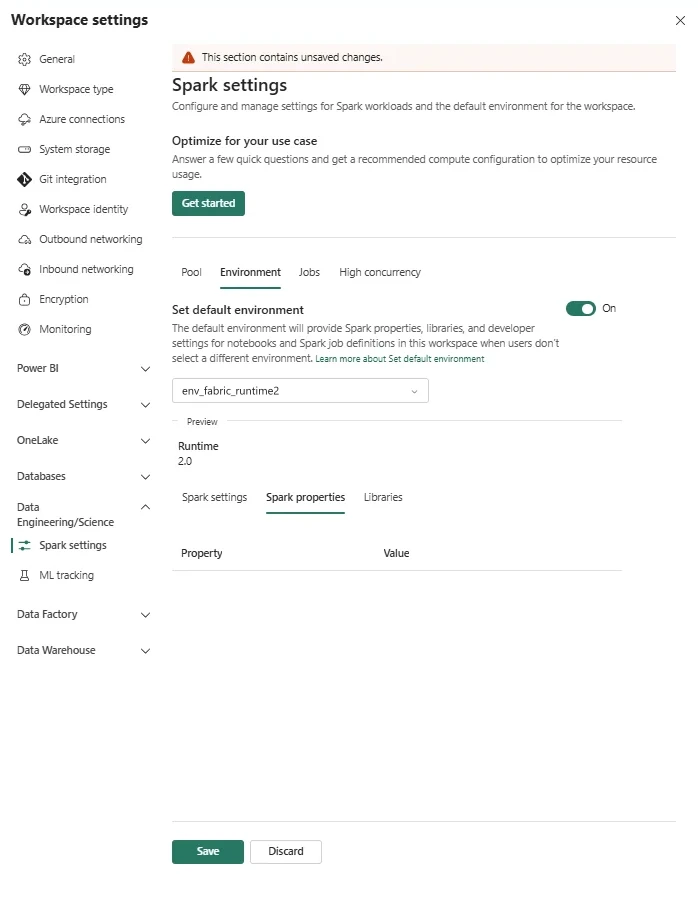
Figure 1. The workspace Environment tab helps you identify the configured default Environment. This is not where you add spark.highConcurrency.max.
Important: A notebook can have its own Environment assignment. Verify which Environment the notebooks actually use instead of assuming the workspace default applies to every activity.
Step 2 — Open the Environment item, not Workspace settings
Close the Workspace settings panel. Find and open the Environment item identified in the previous step.
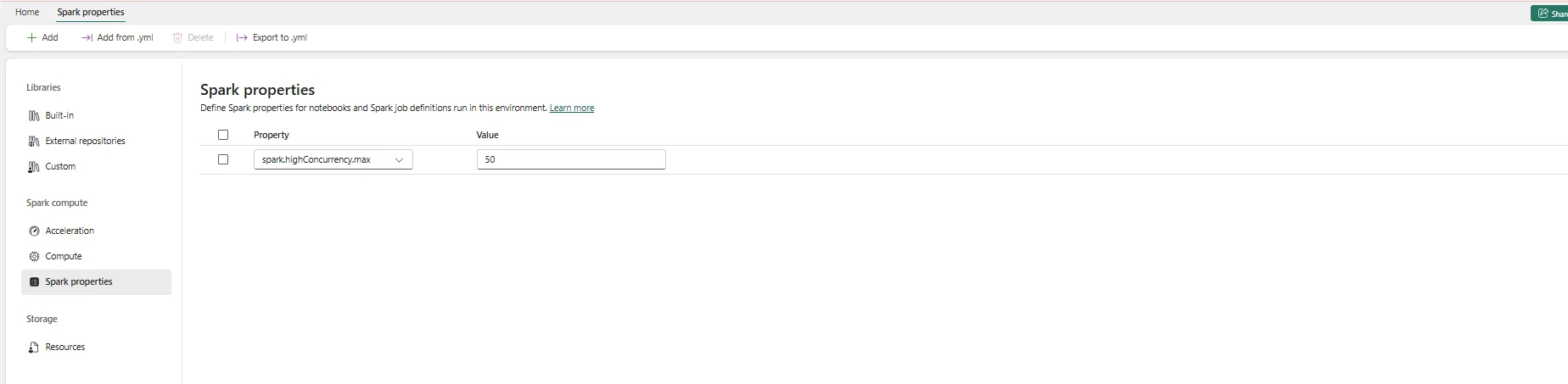
Inside that Environment, navigate to Spark compute → Spark properties.
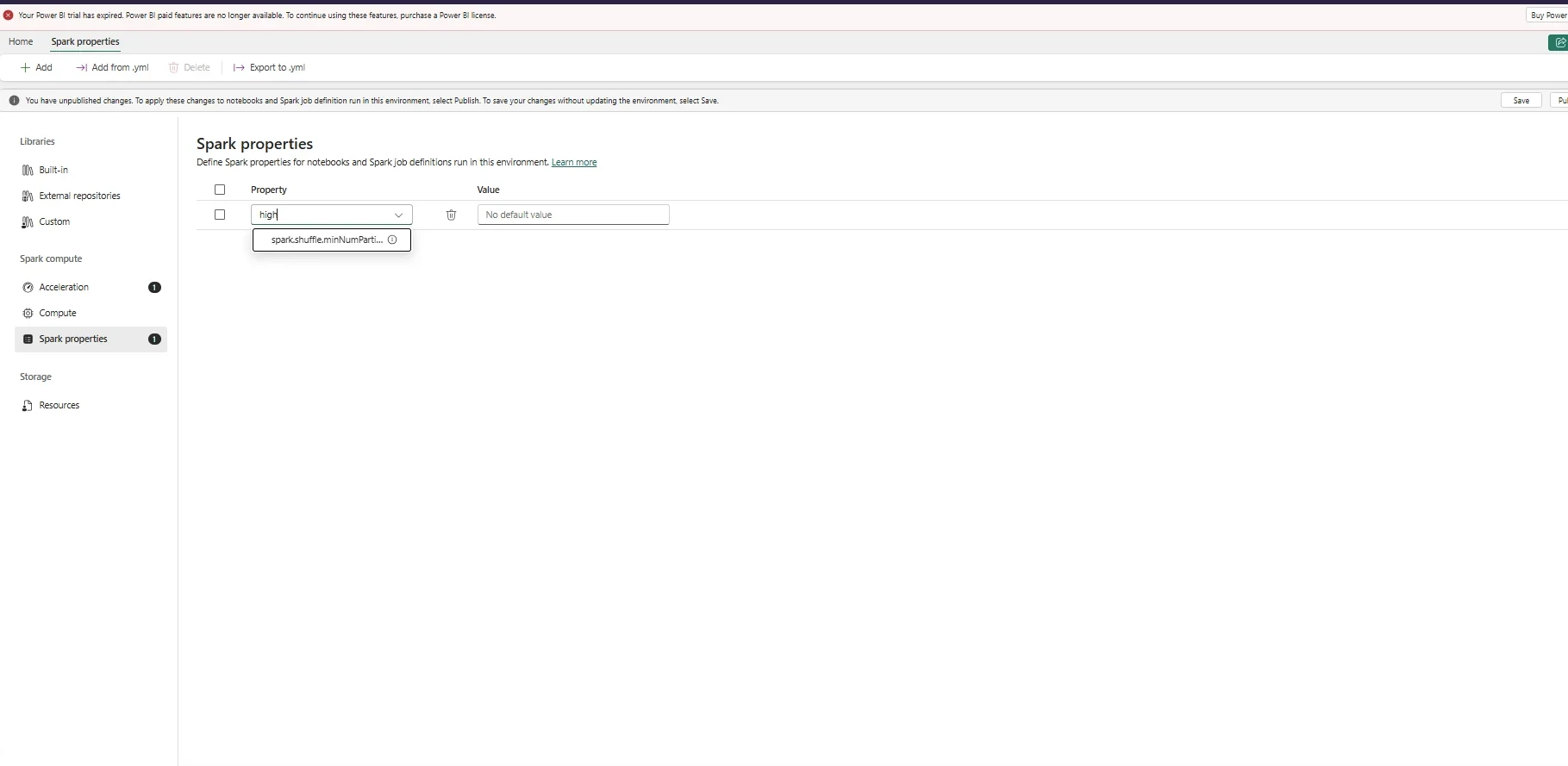
Figure 2. This is the actual Environment editor. Select Add to create a Spark property row.
Step 3 — Manually enter spark.highConcurrency.max
Click Add. In the Property field, enter the exact name:
spark.highConcurrency.maxIn Value, enter the maximum number of notebooks you want to allow in a shared session. For example:
spark.highConcurrency.max = 10Or, to configure the documented upper limit:
spark.highConcurrency.max = 50
Figure 3. The property is not necessarily listed as a suggestion in the dropdown. This screenshot shows the name entered manually with a value of 50.
Do not select a different suggested property. For example, spark.shuffle.minNumPartitions is unrelated to the high-concurrency notebook count.
Step 4 — Save and publish
After entering the property, use the Environment editor’s Save and Publish controls. Publishing is important: Microsoft’s instructions say the updated limit is inherited by notebooks and pipeline activities using the published Environment.
For a manual entry, verify the editor actually accepts it:
- Confirm that the save/publish workflow completes without a validation error.
- Reopen the Environment and check that the property and value persist.
- Check notebook assignments to confirm they use this Environment.
- Validate behavior with a controlled pipeline run; an entered number alone does not prove the sharing limit has taken effect.
Step 5 — Enable high concurrency for pipeline notebooks
Setting a sharing limit does not by itself enable high-concurrency execution. For pipelines, go to Workspace settings → Data Engineering/Science → Spark settings → High concurrency and enable For pipeline running multiple notebooks.
In the pipeline editor, open each relevant Notebook activity → Advanced settings → Session tag. Give compatible notebooks the same tag, for example ingestion-group-a. Fabric uses matching tags to identify candidates for session sharing.
Notebooks must also meet the documented compatibility requirements, including the same user boundary, default Lakehouse, Spark compute configuration, and library requirements. If these differ, Fabric can start separate sessions despite matching tags.
Why one Microsoft page says 5 and another says 50
Two official Microsoft Learn pages currently describe different limits:
- The newer High concurrency mode overview (updated March 18, 2026) states the default is five and describes setting
spark.highConcurrency.maxup to 50. - The older Configure high concurrency mode for Fabric notebooks in pipelines page (updated February 23, 2025) still describes a five-notebook maximum under its session-tag instructions.
For the configurable limit, follow the newer overview. Treat the five-notebook statement in the older pipeline article as reflecting the default/older guidance, not the latest documented ceiling.
Performance: should you use 50?
Not necessarily. Allowing 50 notebooks to share a Spark session improves packing flexibility; it doesn’t provide 50 independent Spark clusters. Shared notebooks contend for Spark resources.
A practical starting point is to compare several scenarios with the same notebook workload, same dependencies, and same Fabric capacity:
| Trial | spark.highConcurrency.max |
What to measure |
|---|---|---|
| Baseline | 5 (default) | Total pipeline duration; Spark startup/queue time |
| Conservative increase | 10 | Whether session startup savings outweigh contention |
| Higher density | 20 | Whether resource saturation starts to raise execution time |
| Maximum | 50 | Whether packing improves or degrades end-to-end duration |
For each trial, record the overall pipeline run time, individual notebook durations, Spark session acquisition time, and capacity utilization. Optimize total pipeline completion time, not simply the number of notebooks per session.
Troubleshooting
The property is not in the dropdown
Try entering the full key manually in Spark properties → Property, as shown in Figure 3. The screenshot demonstrates an editable field; it does not establish that every tenant accepts the property. Publishing without errors and confirming the configuration persists are the next checks.
I can only see a default Environment selector
You’re still in Workspace settings → Spark settings → Environment. Use that screen to find the Environment’s name, then open the Environment item itself.
I set it to 50 but notebooks still start separate sessions
Confirm high concurrency is enabled for pipelines, the Notebook activities use matching session tags, and the notebooks meet the session-sharing requirements. Increasing the maximum does not override compatibility restrictions or guarantee that all notebooks join one session.
The pipeline is slower after increasing the limit
Reduce session density and investigate Spark contention. For CPU-intensive jobs, large joins, shuffles, or writes, separate Spark sessions may produce better end-to-end elapsed time.
Official Microsoft documentation
- High concurrency mode in Apache Spark for Fabric — Dynamic session sharing limit
- Configure high concurrency mode for Fabric notebooks in pipelines
Screenshots are from a Fabric Environment configuration walkthrough captured in October 2026. UI labels may change. The screenshots show configuration entry, not a verified 50-notebook production benchmark.
Was this helpful?
What could be better?
Thanks — that helps me improve Javi Builds.
Continue learning
- Cheat sheetFabric Notebook PerformanceTroubleshoot and improve Microsoft Fabric notebook performance by separating Spark session startup, data scan, shuffle, skew, driver pressure, concurrency, and write-path bottlenecks.Open cheat sheet
- RoadmapMicrosoft Fabric Notebook PerformanceA visual, step-by-step guide to setting spark.highConcurrency.max in a Microsoft Fabric Environment, enabling pipeline session sharing, and avoiding common setup mistakes.View roadmap
What should I build next?
I'm building Javi Builds around practical problems data engineers actually face. Tell me what you'd like to see next.
Stay in the loop
Get the Javi Builds updates you actually care about.
Check your inbox
I sent you a confirmation link. Your subscription will be active after you confirm it.